
The challenge:
Part of our process of converting reports over to Dataviews has driven us to seek more… innovative ways of displaying data.
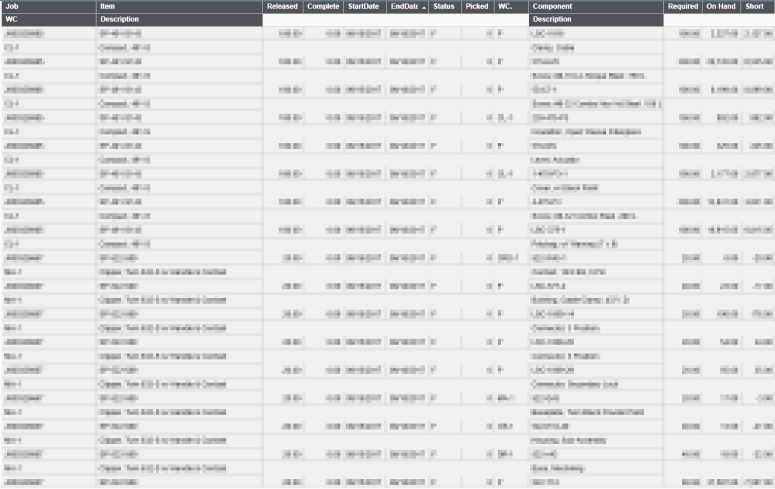
One of these requirements first surfaced as a very simple question on formatting. A report was listing Job, Suffix, (some other stuff) and Job Materials. The parent Job information was repeating on every row, crowding the report and making it difficult to read. Our challenge was to find a way in Dataviews to suppress the parent Job information if it hadn’t changed since the previous line. (If you’re familiar with Pivot Tables, imagine the “Do not Repeat Item Labels” option in Report Layout.)
Relative Reference Indexes
Dataviews run on a third-party tool from Infragistics. (Although I’ve had some trouble figuring out if it’s a WinGrid, DataGrid, UltraGrid, SuperGrid, SuperDuperGrid, SuperCaliFragilisticExpialidociousGrid, whichever.) Either way, if you dig far enough in the Infragistics documentation, you’ll find this concept of “References.” There’s some ridiculously cool possibilities mentioned in this help file, but what I want to focus on is indexes.
When you’re creating a calculated column in the Formula Builder, you can specify a column’s value (for that row) by writing it in brackets. (E.g., [Job]). Pretty easy. However, this documentation states that you can pull the value for a specific row by adding an index. For instance, [Job(0)] will always pull the value of Job from the first row. Specifying [Job(*)] will pull all of the job values, and is specifically designed for aggregates. (Like, MAX([Job(*)]).
But even cooler than that is “relative indexes,” where you can specify something like [Job(-1)], or [Job(+1)] and reference the Job field on the rows before or after the current row. It’s like a SQL LAG or LEAD function, if you’re so inclined.
How to Solve This Particular Problem
So with that knowledge in mind, you can simply check the previous row’s Job field, and see if it matches. If it does, you can blank out the row.
IF([Job(-1)]=[Job], "", [Job])
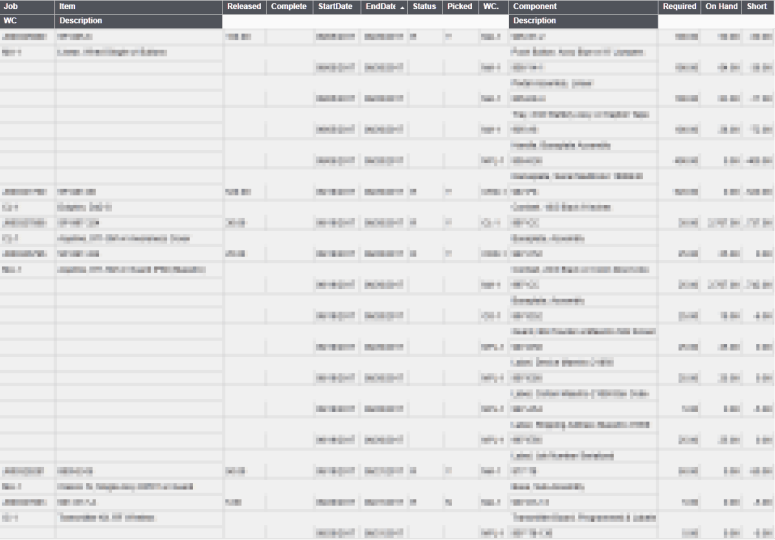
Just watch out, because on your very first row you will get an error message since it’s trying to reference a row that doesn’t exist. Pretty easy to fix, just use the IFERROR function and display the Job field if that is the case.
IFERROR(IF([Job(-1)]=[Job], "", [Job]), [Job])
Some Other Cool Stuff You Can Do
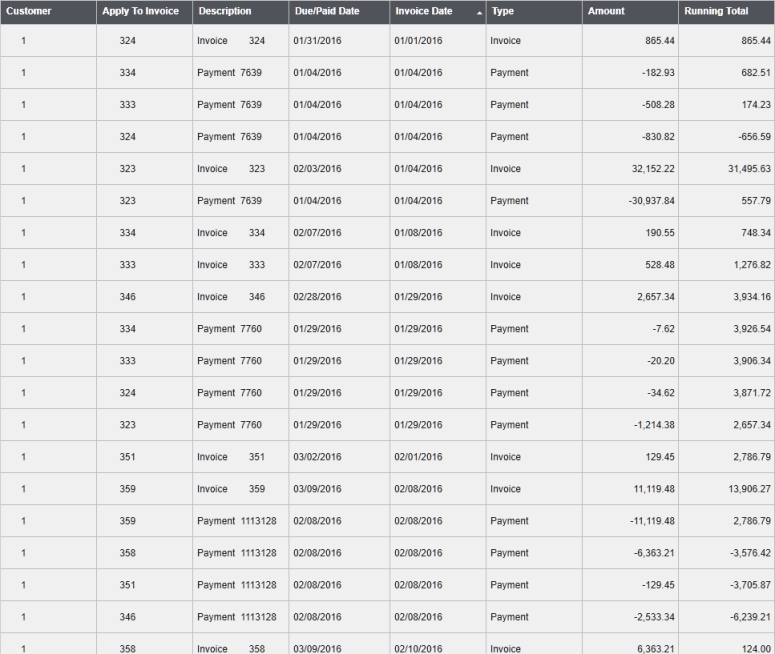
You can also specify ranges, like you would in Excel, with a colon (:). This, paired with absolute references, lets you do some neat things like running totals.
SUM([Amount(0)]:[Amount])
Let’s try something more complex. If you are using a group-by, Row (0) references the first row in that group. That means a custom summary set up on the Due/Paid date field on A/R Posted Transactions Detail, grouped by Apply-To Invoice, sorted to show Invoice first, and then the most recent payment, could give you the difference in days since the most recent payment and the invoice due date.
DATEDIFF( "d", [DueDate(0)], [DueDate(1)] )
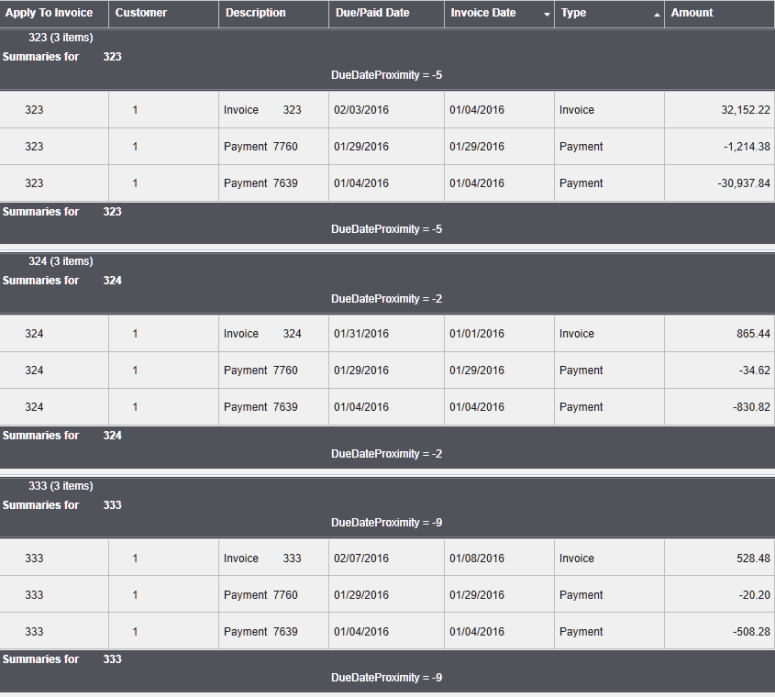
Just remember to save and re-open the dataview layout after creating a custom summary that uses row-based references, since it won’t automatically calculate after creating it. (Frustrating.) Also keep in mind that the grand total value is going to be pretty useless if you are using row-specific summaries with a group-by. (It would typically just match your first group.)
Conclusion
I highly recommend reading through the WinCalcManager help file, since there’s some really interesting stuff to mine here that maps directly to the Dataviews formula builder. (That’s not just my recommendation, Infor recommends this too. (KB 1417398)).
By the way, if anyone can find a way to set up Named References in Dataviews, let me know! That would theoretically allow you to set up variables for certain calculations, instead of having to dig through custom columns to make a change to static values.
Hope that helps!
-Jesse Brohinsky
 SyteLinePSA
Great write up as usual Jesse!
LikeLiked by 1 person
Great to meet you at TechEd! Thank you for all the advice on upgrading!
LikeLike
This is really helpful. Thank you.
LikeLike
Thanks Jesse. Very useful
LikeLike