
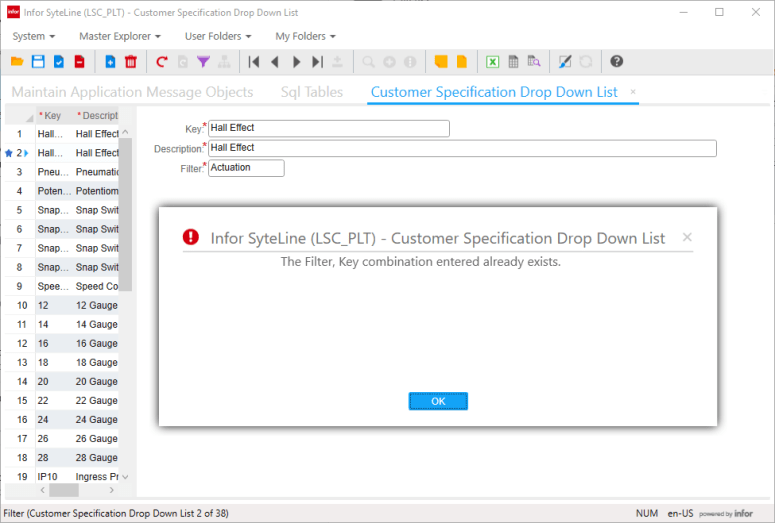
Have you ever been working with a custom form in SyteLine, on top of your own custom table, and gotten this error message?
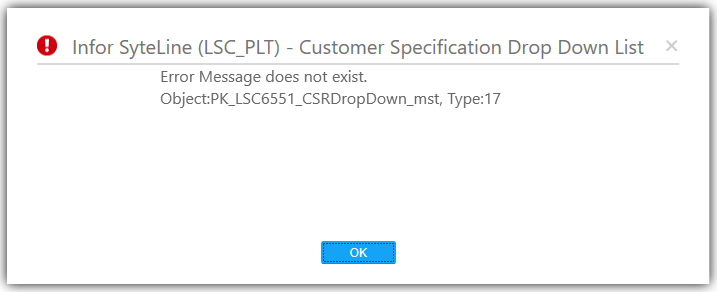
Helpful, right?
This error message happens when there is a primary key on the table, which enforces uniqueness on certain columns. When you try to add a record that has the same values in the primary key columns as an already existing record, the primary key says “Nope.” and returns an error. Of course, Mongoose helpfully sees that the primary key has generated an error (17), and goes looking in the Application Messages for the error message it’s supposed to show. If you haven’t created an application message for this error, you get this super helpful placeholder message which tells you almost nothing and has been known to frighten users and small children.
In this article, we’re going to look at creating these application messages for this kind of error (the hard-but-extensible way, and the easy-sweep-it-under-the-carpet way), and at the end I’ll share some code you can use to create application messages for a given table’s primary key automatically, the proper way.
Caveat(s)
Infor changed the Application Message schema with SyteLine 9, so if you’re running 8 or previous, these instructions may be less than helpful. Sorry! The general idea should still be valid, but the way of doing it may not.
My script down below includes the CONCAT() function, so it may require some massaging to work on SQL 2008.
Create a Backup!
If you use the code at the end of this article, this step is not optional.
Since we’re modifying these application messages, we should make a backup of what we currently have, in case we manage to foul something up beyond all repair. If you use the code at the end of this article, this step is not optional.
Bonus! When you script out your application messages, you can use this script to migrate them to your Pilot and Production environments. Because you are doing all of your coding in a Development environment, and your testing in a Pilot environment. Right? You’re not coding in Production, right?
Good.
Generate Application Messages Script
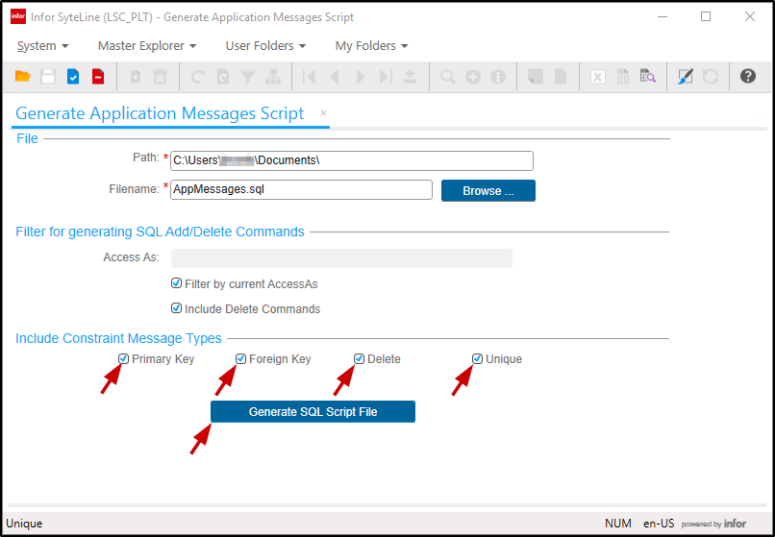
So this step is super duper easy. Log into SyteLine as SA, and open the Generate Application Messages Script form. Click all of the “Include Constraint Message Types” checkboxes, and hit Generate SQL Script File. The file will be created in the location that you may or may not have changed above. See? Wasn’t that easy?
Fixing the AccessAs bug
Erm, maybe it wasn’t as easy as we thought. In SyteLine 9.00.20 at least, there is a bug with the file that is created by this form. For all Application Messages, the AccessAs value is supposed to be set to NULL for any custom objects you create. However, when you create this script, you may find the following:


See that N”? That’s the script trying to set the AccessAs value to an empty string! This is really bad, because if you deploy that against another configuration, you’ll never be able to modify it again without resorting to SQL. (You can’t change objects that don’t have an AccessAs value of NULL, and N” is most certainly not NULL.
We brought this to Infor, who have fixed the problem… In a later version of the Mongoose Toolset. So until we get the version of SyteLine that has that patched Mongoose toolset, (9.1.50.0) we will have to repair this issue ourselves. Should be pretty easy though, do a Find/Replace on all instances of N” and replace them with NULL.
Application Messages
OK, now that we have a backup, we can start working on fixing this problem. We will need to create a (useful) message for our users, and tie that message to the object throwing the error.
Types of Messages
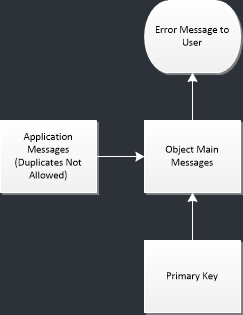
There are three pieces to the Application Messages system. Application Messages, Object Main Messages, and Object Build Messages.
Application Messages
Application Messages are simply strings. By using “&1” “&2” “&3” you can create placeholders for substitution strings. This allows you to create reusable messages, which is pretty cool.
You can look at Application Messages (and create new ones) with the Maintain Application Messages form.
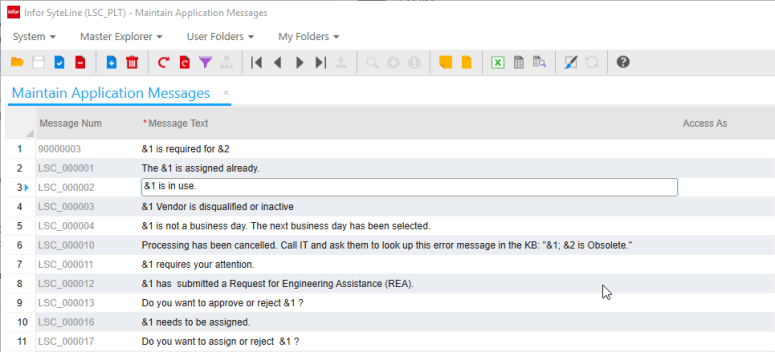
Notice how our custom messages start with LSC? in SyteLine 9, these messages are now prefix-able. You can specify the prefix you want on the General Parameters form, although it doesn’t look like it auto-creates those message numbers for you like most other TBD fields. It just adds the prefix in for you and makes you type in the number. Lame.
Object Main Messages
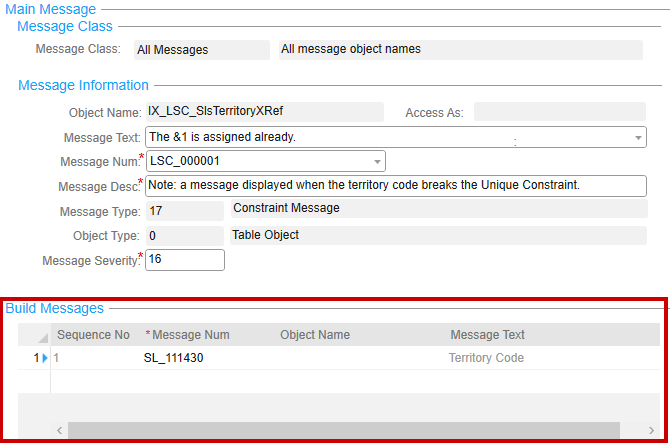
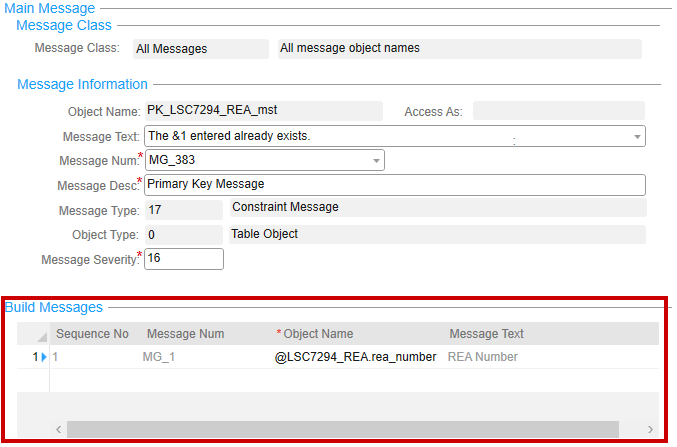
Object Main Messages are how you tie Application Messages to objects. This could be a primary key, a table, a column, or even an error message that you call somewhere else. You can access these using the Maintain Application Message Objects form.

Object Build Messages
If your application message has substitution string “slots,” (&1, &2, etc) you can load either application messages or other objects (with a message num of “MG_1”) into the subcollection at the bottom of the Maintain Application Message Objects form.
Manually Creating the Error Message
Alright, get on with it. How do we fix our “Error Message Not Found” problem?
The Easy (Cheating) Way
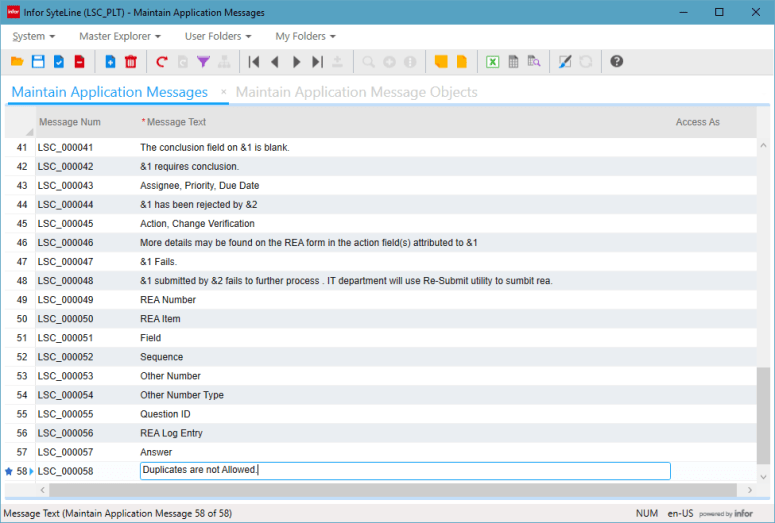
If you don’t particularly care about standards, and just want to get this over with, here is the easiest way to “fix” the problem. You have an object, which is throwing an error, so you need at minimum an error message to throw, and you will need to tie it to that object.
Let’s create an Application Message called “Duplicates are not allowed.”
Now we just need to tie that message we just created to the primary key that was causing us problems. Thankfully, SyteLine is nice enough to tell us that primary key right in the error message:
So all we need to do is create an Application Message Object on the Maintain Application Message Objects form that ties the two together, and we’re done!
- Object Name
- Use the Primary Key specified in the error message
- Message Num
- Use the Message Number you just created.
- Message Description
- Type something in that will help you remember what the heck this is even in here for. Your future self will thank you.
- Message Type
- Also found on the error message, (17) is a constraint violation.
- Object Type
- 0 – Table, 1 – Column, 2 – SP, 3 – Trigger
- This is the source of the error. I would think for a primary key constraint violation, it would use Column (1), but all the ones Infor has done have been Table (0). I tend to just do what Infor does to remain consistent.
- Message Severity
- Should already be 16, just leave it alone.

Now go try adding that duplicate record in again, and you should get a (semi-helpful) error message!
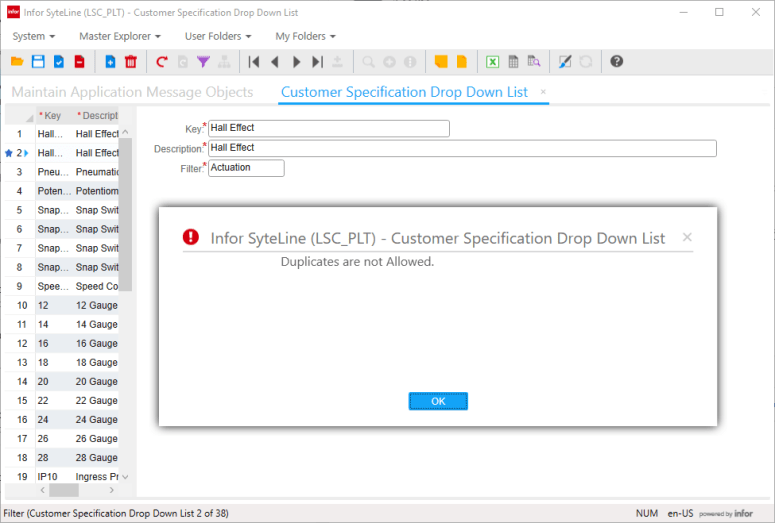
There you go, that’s about as easy as I can make it… But it’s kinda… unsatisfying, you know? How does Infor handle something like this?
The Hard (Proper) Way
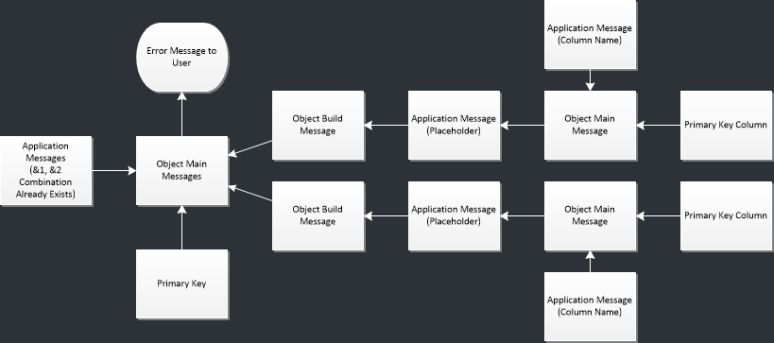
This is the model for a primary key error message that has two columns in the primary key. Looks a little complicated, right? This is what Infor does; by specifying all the objects involved, they display both columns that are part of the key in the error message. However, to do that, we need to create a bunch of messages, a bunch of objects, and then tie them all together with one master object. Here’s a list of what we need:
- An application message for the actual error message. (Mongoose gives us some to pick from already.)
- One application message per each column in the primary key. (A human-readable version of the column name)
- One object main message per column, binding each application message to their respective column in the primary key
- An application message placeholder for the build messages, (Mongoose gives us one already)
- An object main message tying the error message to the primary key
- One object build message per each column in the primary key, tying the columns into the error message.
Getting your Primary Key Details
Before you get started, you’ll need to know how many columns are in your primary key. You can find this pretty quickly from the SQL Tables form.

Here we have “SiteRef “(which we don’t really need,) “list_key,” and “list_filter.” This means we will treat this like a two-column primary key. We will need to create 7 objects in our Application Messages system for this to work. (2 Application Messages, 3 Object Main Messages, and 2 Object Build Messages.)
Yeah, I know. I said it was the “proper” way, not the “easy” way.
The Actual Error Message
Helpfully, Mongoose already comes with a bunch of these that SyteLine uses for its own primary key constraint messages. Pick the one that has the right number of columns for your primary key. (MG_384, for us.)
- MG_383 The &1 entered already exists.
- MG_384 The &1, &2 combination entered already exists.
- MG_385 The &1, &2, &3 combination entered already exists.
- MG_386 The &1, &2, &3, &4 combination entered already exists.
- MG_387 The &1, &2, &3, &4, &5 combination entered already exists.
- MG_388 The &1, &2, &3, &4, &5, &6 combination entered already exists.
- MG_389 The &1, &2, &3, &4, &5, &6, &7 combination entered already exists.
- MG_390 The &1, &2, &3, &4, &5, &6, &7, &8 combination entered already exists.
- MG_391 The &1, &2, &3, &4, &5, &6, &7, &8, &9 combination entered already exists.
Column Name Messages
We will need to create two new Application Messages to hold the “friendly” names of the list_key and list_filter columns.
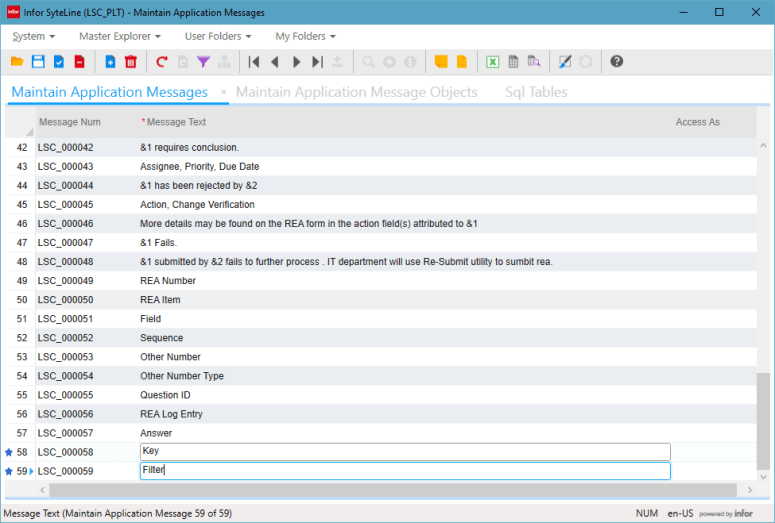
Object Main Messages for the Columns
Now we need to tie those messages to the actual columns, which we do with the Maintain Application Message Objects form. The object naming convention is “@” followed by the table name (without _mst), “.”, and the column name. Tie that to the Message Number, and leave the defaults for Message Type, Object Type, and Message Severity.
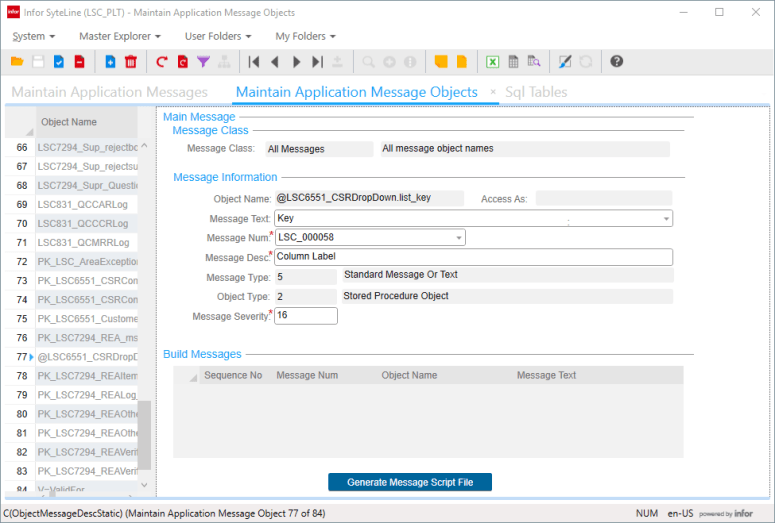
Application Message Placeholder
Again, here’s one that’s been created for us. “MG_1” is a message placeholder, which seems only to exist to satisfy the “Required” Message Num column on the Build Messages subcollection.
Object Main Message for the Primary Key
Time to tie that existing message (“MG_384”) to our Primary Key. This should look pretty similar to the one we made in the Easy version of these instructions.

Object Build Messages for the Columns
Finally, we need to bind the columns to this object message. This is done with the subcollection below. Remember, use “MG_1” as the application message, then just specify the column names in the proper order.
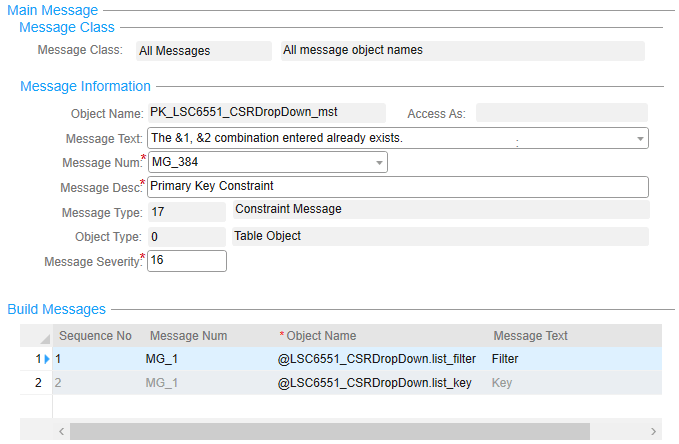
If you did everything right, you should have a shiny new error message that not only tells you there’s a problem, but also tells you which columns are actually causing the duplicate issue!
Automatic Creation Script
As you can imagine, after doing about 5 of these, I finally said “Enough is enough. I am going to automate this process.” So I created a SQL script that does most of the heavy lifting for you. This SQL script creates a deployment script that you can use to generate these application messages, simply by running the generated deployment script against your development application database. Bear in mind that this script should not be used for deployment to other configurations, that’s what you have Generate Application Messages Script for. Right?
The Even Easier (Proper) Way
As a quick reminder: Any code or advice in this blog is for research purposes only, and is not intended for production use. While the script below is read-only, the results it generates are not. We are not responsible for any damage you do to your system with the results of this script. Take backups and work in a development environment!
| -- SETSITE Snippet | |
| -- Required at the beginning of all code! | |
| DECLARE @SiteName SiteType | |
| , @Infobar InfobarType; | |
| SELECT TOP 1 | |
| @SiteName = [site].[site] | |
| FROM [site]; | |
| EXEC [dbo].[SetSiteSp] @SiteName, @Infobar OUTPUT; | |
| BEGIN TRANSACTION; | |
| SET NOCOUNT ON; | |
| GO | |
| /* | |
| Author: Jesse Brohinsky | |
| Company: Linemaster Switch Corporation | |
| Date: 2016-07-20 | |
| Comments: Returns a deployment script with the necessary application messages for a primary key. | |
| Caution: May create duplicates if run multiple times. | |
| */ | |
| /*---------------INPUT PARAMETERS------------------------*/ | |
| DECLARE | |
| -- Use the prefix for your Application Messages. Will be overridden if a prefix exists on general parameters. | |
| @AppMsgPrefix MessageNoPrefixType = 'LSC_' | |
| -- Select the table for which you want to generate PK messages | |
| , @TableName TableNameType = '## TABLE NAME HERE ##' | |
| /*-----------------------------------------------------*/ | |
| /*--------------DEFAULT PARAMETERS---------------------*/ | |
| -- These parameters usually don't need to be changed. | |
| -- Choose whether or not you want the Site Ref column included in your messages. Most likely, this should be 0. | |
| , @IncludeSiteRef BIT = 0 | |
| -- Default Message Language is English, or 1033. | |
| , @MessageLanguage MessageLanguageType = 1033; | |
| /*-----------------------------------------------------*/ | |
| -- Override App Message Prefix. | |
| SELECT @AppMsgPrefix = ISNULL([parms].[MessageNoPrefix], @AppMsgPrefix) | |
| FROM [parms]; | |
| -- Grabs Primary Key from table | |
| DECLARE @PKName GenericKeyType; | |
| SELECT @PKName = [indexes].[name] | |
| FROM [sys].[indexes] | |
| WHERE [indexes].[object_id] = OBJECT_ID(@TableName) | |
| AND [indexes].[index_id] <> 0 | |
| AND [indexes].[is_primary_key] = 1; | |
| -- Remove multisite table suffix if exists. | |
| DECLARE @StripMST TableNameType; | |
| SET @StripMST = REPLACE(@TableName, '_mst', ''); | |
| -- Length and latest used application message number | |
| DECLARE @AppMsgLen INT | |
| , @MaxAppMsgNum INT; | |
| SELECT @MaxAppMsgNum = CONVERT(INT, ( REPLACE(MAX([ApplicationMessages].[MessageNo]), | |
| @AppMsgPrefix, '') )) | |
| , @AppMsgLen = LEN(MAX([ApplicationMessages].[MessageNo])) | |
| FROM [ApplicationMessages] | |
| WHERE [ApplicationMessages].[MessageNo] LIKE CONCAT(@AppMsgPrefix, '%'); | |
| -- Get object names and column labels (hungarianized) from the primary key. | |
| SELECT ROW_NUMBER() OVER ( ORDER BY [PrimaryKeyColumns].[ordinal_position] ) AS [Sequence] | |
| , CONCAT('@', @StripMST, '.', [PrimaryKeyColumns].[column_name]) AS [ObjectName] | |
| , [dbo].[Hungarianize]([SqlColumns].[column_name]) AS [ColumnLabel] | |
| INTO [@PrimaryKeys] | |
| FROM [SqlColumns] | |
| INNER JOIN [PrimaryKeyColumns](@TableName) | |
| ON [SqlColumns].[column_name] = [PrimaryKeyColumns].[column_name] | |
| WHERE [SqlColumns].[table_name] = @TableName | |
| AND ( [PrimaryKeyColumns].[column_name] NOT IN ( 'SiteRef', 'site_ref' ) | |
| OR @IncludeSiteRef = 1 | |
| ) | |
| ORDER BY [PrimaryKeyColumns].[ordinal_position]; | |
| -- Cleanup results and build message numbers. | |
| SELECT [@PrimaryKeys].[Sequence] AS [Sequence] | |
| , CONCAT(@AppMsgPrefix, | |
| REPLICATE(0, | |
| @AppMsgLen - ( LEN([@PrimaryKeys].[Sequence] | |
| + @MaxAppMsgNum) | |
| + LEN(@AppMsgPrefix) )), | |
| [@PrimaryKeys].[Sequence] + @MaxAppMsgNum) AS [MessageNo] | |
| , [@PrimaryKeys].[ObjectName] | |
| , [@PrimaryKeys].[ColumnLabel] AS [ColumnLabel] | |
| INTO [@Messages] | |
| FROM [@PrimaryKeys]; | |
| -- This will hold the final output. | |
| DECLARE @InsertScript NVARCHAR(MAX) = '/* PLEASE CHECK APPLICATION MESSAGES TO MAKE SURE THEY MEET YOUR NEEDS */ | |
| '; | |
| SELECT @InsertScript = CONCAT(@InsertScript, | |
| ' | |
| /* Transaction created here. Test with a rollback transaction prior to committing. */ | |
| BEGIN TRANSACTION; | |
| /************************ | |
| * Application Messages | |
| ************************/ | |
| /* These are the human-readable column names for your message. These may require some editing to make them presentable. */ | |
| '); | |
| -- Create Application Message Insert Scripts | |
| DECLARE @MessageNo MessageNoType | |
| , @ObjectName ObjectNameType | |
| , @ColumnLabel LabelType; | |
| DECLARE [ApplicationMessageInsert] CURSOR FAST_FORWARD READ_ONLY | |
| FOR | |
| SELECT [@Messages].[MessageNo] | |
| , [@Messages].[ColumnLabel] | |
| FROM [@Messages]; | |
| OPEN [ApplicationMessageInsert]; | |
| FETCH NEXT FROM [ApplicationMessageInsert] INTO @MessageNo, @ColumnLabel; | |
| WHILE @@FETCH_STATUS = 0 | |
| BEGIN | |
| -- Build the beginning of the insert script: Builds messages for all columns in the Primary Key | |
| SELECT @InsertScript = CONCAT(@InsertScript, | |
| 'EXEC [AddApplicationMessage2Sp] N''', | |
| @MessageNo, ''', N''', @ColumnLabel, | |
| ''', N''', @MessageLanguage, | |
| ''', NULL, 0; | |
| GO | |
| '); | |
| FETCH NEXT FROM [ApplicationMessageInsert] INTO @MessageNo, @ColumnLabel; | |
| END; | |
| CLOSE [ApplicationMessageInsert]; | |
| DEALLOCATE [ApplicationMessageInsert]; | |
| SELECT @InsertScript = CONCAT(@InsertScript, '/************************ | |
| * ObjectMainMessages | |
| ************************/ | |
| '); | |
| -- MG_383 through MG_391 are the Primary Key Constraint messages. | |
| DECLARE @MGAppMsg MessageNoType; | |
| -- Each message supports a different number of columns in the key. | |
| SELECT @MGAppMsg = CONCAT('MG_', 382 + MAX([Sequence])) | |
| FROM [@PrimaryKeys]; | |
| SELECT @InsertScript = CONCAT(@InsertScript, | |
| '/* Tie this primary key to a mongoose message specifically for this number of key columns. */ | |
| EXEC [AddObjectMainMessage2Sp] N''', @PKName, ''', 17, N''', @MGAppMsg, | |
| ''', 16, N''Primary Key Constraint'', 0, NULL, 0; | |
| GO | |
| /* Tie columns to messages*/ | |
| '); | |
| -- Builds messages, tying the columns in the primary key to the messages we created earlier. | |
| DECLARE [ObjectMainMessagesInsert] CURSOR FAST_FORWARD READ_ONLY | |
| FOR | |
| SELECT [@Messages].[MessageNo] | |
| , [@Messages].[ObjectName] | |
| FROM [@Messages]; | |
| OPEN [ObjectMainMessagesInsert]; | |
| FETCH NEXT FROM [ObjectMainMessagesInsert] INTO @MessageNo, @ObjectName; | |
| WHILE @@FETCH_STATUS = 0 | |
| BEGIN | |
| -- Tie columns to messages | |
| SELECT @InsertScript = CONCAT(@InsertScript, | |
| 'EXEC [AddObjectMainMessage2Sp] N''', | |
| @ObjectName, ''', 5, N''', @MessageNo, | |
| ''', 16, N''Column Label'', 2, NULL, 0; | |
| GO | |
| '); | |
| FETCH NEXT FROM [ObjectMainMessagesInsert] INTO @MessageNo, @ObjectName; | |
| END; | |
| CLOSE [ObjectMainMessagesInsert]; | |
| DEALLOCATE [ObjectMainMessagesInsert]; | |
| SELECT @InsertScript = CONCAT(@InsertScript, | |
| '/************************ | |
| * ObjectBuildMessages | |
| ************************/ | |
| /* Tie the column messages to the constraint message. (Binds substitution strings.) */ | |
| '); | |
| DECLARE @Sequence INT; | |
| DECLARE [ObjectBuildMessages] CURSOR FAST_FORWARD READ_ONLY | |
| FOR | |
| SELECT [@Messages].[Sequence] | |
| , [@Messages].[ObjectName] | |
| FROM [@Messages]; | |
| OPEN [ObjectBuildMessages]; | |
| FETCH NEXT FROM [ObjectBuildMessages] INTO @Sequence, @ObjectName; | |
| WHILE @@FETCH_STATUS = 0 | |
| BEGIN | |
| -- Tie the PK message to the substitution strings (column names) | |
| SELECT @InsertScript = CONCAT(@InsertScript, | |
| 'EXEC [AddObjectBuildMessageSp] N''', | |
| @PKName, ''', 17, ', @Sequence, | |
| ', ''MG_1'', N''', @ObjectName, '''; | |
| GO | |
| '); | |
| FETCH NEXT FROM [ObjectBuildMessages] INTO @Sequence, @ObjectName; | |
| END; | |
| CLOSE [ObjectBuildMessages]; | |
| DEALLOCATE [ObjectBuildMessages]; | |
| SELECT @InsertScript = CONCAT(@InsertScript, | |
| '/* Change to COMMIT TRANSACTION to apply. */ | |
| ROLLBACK TRANSACTION;'); | |
| PRINT @InsertScript; | |
| SET NOCOUNT OFF; | |
| -- No real need for a Rollback, we didn't change anything. But, better safe than sorry.... | |
| ROLLBACK TRANSACTION; |
In short, this script loads the primary key information for the specified table, throws out the SiteRef column (if you tell it to), selects the right application message for the number of columns you have, hungarianizes the column names, and generates insert scripts for all the objects you will need.
What does this look like, if you run it for our table? It creates a script that looks something like this:
| /* PLEASE CHECK APPLICATION MESSAGES TO MAKE SURE THEY MEET YOUR NEEDS */ | |
| /* Transaction created here. Test with a rollback transaction prior to committing. */ | |
| BEGIN TRANSACTION; | |
| /************************ | |
| * Application Messages | |
| ************************/ | |
| /* These are the human-readable column names for your message. These may require some editing to make them presentable. */ | |
| EXEC [AddApplicationMessage2Sp] N'LSC_000058', N'ListKey', N'1033', NULL, 0; | |
| GO | |
| EXEC [AddApplicationMessage2Sp] N'LSC_000059', N'ListFilter', N'1033', NULL, 0; | |
| GO | |
| /************************ | |
| * ObjectMainMessages | |
| ************************/ | |
| /* Tie this primary key to a mongoose message specifically for this number of key columns. */ | |
| EXEC [AddObjectMainMessage2Sp] N'PK_LSC6551_CSRDropDown_mst', 17, N'MG_384', 16, N'Primary Key Constraint', 0, NULL, 0; | |
| GO | |
| /* Tie columns to messages*/ | |
| EXEC [AddObjectMainMessage2Sp] N'@LSC6551_CSRDropDown.list_key', 5, N'LSC_000058', 16, N'Column Label', 2, NULL, 0; | |
| GO | |
| EXEC [AddObjectMainMessage2Sp] N'@LSC6551_CSRDropDown.list_filter', 5, N'LSC_000059', 16, N'Column Label', 2, NULL, 0; | |
| GO | |
| /************************ | |
| * ObjectBuildMessages | |
| ************************/ | |
| /* Tie the column messages to the constraint message. (Binds substitution strings.) */ | |
| EXEC [AddObjectBuildMessageSp] N'PK_LSC6551_CSRDropDown_mst', 17, 1, 'MG_1', N'@LSC6551_CSRDropDown.list_key'; | |
| GO | |
| EXEC [AddObjectBuildMessageSp] N'PK_LSC6551_CSRDropDown_mst', 17, 2, 'MG_1', N'@LSC6551_CSRDropDown.list_filter'; | |
| GO | |
| /* Change to COMMIT TRANSACTION to apply. */ | |
| ROLLBACK TRANSACTION; |
As you can see, we need to tweak a few things before this will work for us. The first two calls to AddApplicationMessage2Sp will create application messages called “ListKey” and “ListFilter.” As you can see, all I’m doing here is Hungarianizing the column names. We’ll go ahead and tweak those to “Key” and “Filter.”
Then, we run once, to make sure it goes through OK, and then again, after changing ROLLBACK TRANSACTION to COMMIT TRANSACTION. What do we get when that’s done?
Quite a bit faster than doing that all by hand.
 SyteLinePSA