
December 2015’s recommended patch list included two APARs, SL201638 and SL201781. Both APARs affected “xModules.sql,” which essentially means that the Master Explorer folders get reset. This removes the ability to access third-party products through the explorer.
Even if you manage to get FormSync working, you will eventually have to run the APAR against the target forms database to update everything that is vendor level and mark those objects as patched. Doing that will nuke-and-pave your Master Explorer. The prevailing wisdom I heard for a long time was “To get your explorer folders back, just reinstall all your third party products!” Well, it turns out that a lot of those products now have ways to re-add themselves into the Master Explorer without having to reinstall the whole darn thing.
I wanted to compile some instructions for the third party products that we use at Linemaster, and ask that if you use other third party products you would include instructions here as well. Perhaps this post can be a good reference for others in the future.
Shop-Trak/Doc-Trak
- Log into SyteLine as sa
- Open the “Form Refresh Utility”
- Select the Forms Database
- Select Doc-Trak
- Select “Explorer Manager”
- Refresh
- Commit
Repeat this process for Shop-Trak. If you’re running Shop-Trak 2016, you can also do this for Fact-Trak.
An alternative to this would also be to just run the Forms installation for that product, but that will affect more than just the Explorer menus.
QCS
On your C: drive of your Utility server, in Program Files (x86) you will find a folder labeled “RSVP” You can run the following scripts against your forms database to restore Explorer folders.
Customer: “C:\Program Files (x86)\RSVP\QCS\Customer\RSQCCreateMenus.sql”
In Process: “C:\Program Files (x86)\RSVP\QCS\IP\RSQCCreateMenus.sql”
Supplier: “C:\Program Files (x86)\RSVP\QCS\Supplier\RSQCCreateMenus.sql”
Enterprise “C:\Program Files (x86)\RSVP\QCS\NonMaterial\RSQCCreateMenus.sql”
Request for Quote (RFQ)
This one you have to go to Infor support and ask nicely for it. They will give you a file called “xSSSRFQRequestForQuote.sql”
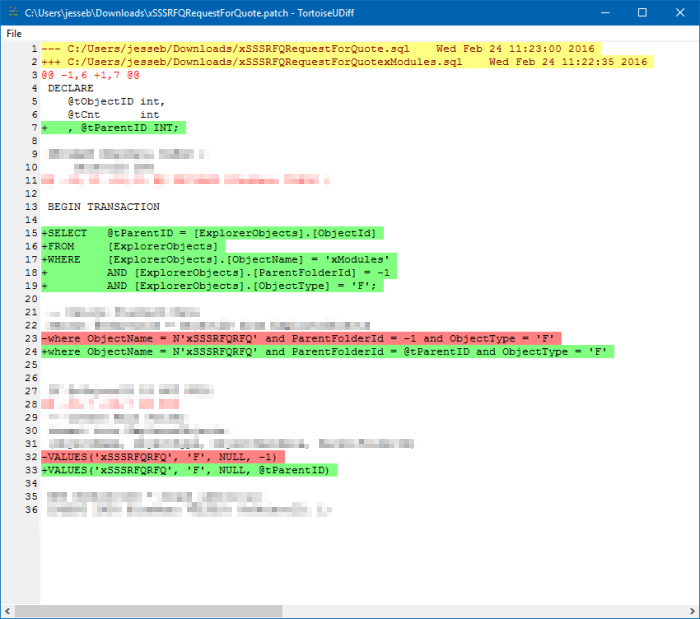
This will recreate the RFQ folders, but it will do so in the root of the Master Explorer. If you want the RFQ folder to be located under the “Modules” folder, you will have to tweak the code a little bit. I can’t post the code, since most of it was written by Infor, but here’s a hint on what you need to change…
 SyteLinePSA