
DISCLAIMER: I am about to describe a way to batch generate discrete CREATE <object> .sql files, based on a list of objects. Please be aware of licensing concerns. We are not responsible for any damage you do to your system with this technique. This technique requires turning on Ole Automation Procedures, which is a setting that should probably not be left enabled for security reasons. This technique also describes a way to generate hundreds of files on the C: drive of your SQL Server. Verify that you have sufficient space on your drive before attempting this technique.
Our APAR installation process requires that we take backups of all objects that will be affected by the APAR that we are installing. That way, we have the originals at least as a reference point prior to replacing them with a new version. Normally this isn’t a huge deal, but the November and December recommended APAR lists affected a huge number of files, even though we were current with our patches. At my last count, there are 123 affected Stored Procedures, Functions, and Triggers.
Being the lazy analyst I am, I said “I am not sitting here and scripting out over 100 objects through SSMS.” So I nabbed some code from Simple-Talk, and wrote up a quick script to loop through a table and feed each object into that stored procedure. The implementation is a little slipshod, and is not thoroughly tested, so please do not just grab it and run it against production without doing some testing. Additionally, as a limitation, this only generates a “CREATE” script. It does not use ALTER, and it does not check for existence of the object. I’m only using this to make backups of the schema of the object, but if you want these features you will have to tweak the code.
- Go grab this stored procedure code, rename it so you know it’s custom, and execute it on your SQL server. (We renamed ours to “LSC_WriteStringToFileSp”)
https://www.simple-talk.com/code/WorkingWithFiles/spWriteStringTofile.txt - Create a new Excel Spreadsheet, and set it up like this:
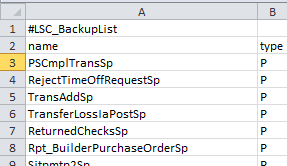
(First row is the name of the temp table that holds the objects, “#LSC_BackupList.” For the rest of the rows, the first column is the name of the object, second column is the type of the object according to the sys.objects table. More information on object types here:
https://msdn.microsoft.com/en-us/library/ms190324.aspx - Paste this code into your SSMS editor. Use Find/Replace to change LSC_WriteStringToFileSp to whatever you named the stored procedure from simple-talk.
This file contains hidden or bidirectional Unicode text that may be interpreted or compiled differently than what appears below. To review, open the file in an editor that reveals hidden Unicode characters. Learn more about bidirectional Unicode characters/* Author: LINEMASTER\JesseB Date: 2015-12-16 Comments: Takes a list of SQL objects and their types and writes them as create scripts on the SQL server. Prerequisites: C:\TEMP must exist on the SQL Server LSC_WriteStringToFileSp must be present. */ IF NOT EXISTS ( SELECT * FROM [sys].[objects] WHERE [objects].[object_id] = OBJECT_ID(N'[dbo].[LSC_WriteStringToFileSp]') AND [objects].[type] IN ( N'P', N'PC' ) ) BEGIN RAISERROR('LSC_WriteStringToFileSp Must Exist.', 16, 1); RETURN; END; --This allows SQL to write to a file. We turn this off at the end. EXEC [sys].[sp_configure] @configname = 'Ole Automation Procedures', -- varchar(35) @configvalue = 1; -- int GO RECONFIGURE; DECLARE @String NVARCHAR(MAX) , @Filename NVARCHAR(100) , @Type NVARCHAR(3) -- Configuration: , @Path NVARCHAR(255) = 'C:\TEMP' -- On the SQL Server, not the local machine. This path must exist! , @Suffix NVARCHAR(5) = '.sql'; -- Empty table to hold object names SELECT [objects].[name] , [objects].[type] INTO [#LSC_BackupList] FROM [sys].[objects] WHERE 1 = 0; -- Insert object names and types to script out -- Example: --INSERT INTO #LSC_BackupList (name,type) VALUES ('PSCmplTransSp','P'); --INSERT INTO #LSC_BackupList (name,type) VALUES ('RejectTimeOffRequestSp','P'); -- Generate list from http://tools.perceptus.ca/text-wiz.php?ops=7 --***************************************** --***************************************** DECLARE [Scripter_Cursor] CURSOR FAST_FORWARD READ_ONLY FOR SELECT [#LSC_BackupList].[name] , [#LSC_BackupList].[type] , OBJECT_DEFINITION([objects].[object_id]) FROM [#LSC_BackupList] INNER JOIN [sys].[objects] ON [#LSC_BackupList].[name] = [objects].[name] AND [#LSC_BackupList].[type] = [objects].[type]; OPEN [Scripter_Cursor]; FETCH NEXT FROM [Scripter_Cursor] INTO @Filename, @Type, @String; WHILE @@FETCH_STATUS = 0 BEGIN SELECT @Filename = CONCAT(@Type, @Filename, @Suffix); EXEC [LSC_WriteStringToFileSp] @String = @String, -- varchar(max) @Path = @Path, -- varchar(255) @Filename = @Filename; -- varchar(100) FETCH NEXT FROM [Scripter_Cursor] INTO @Filename, @Type, @String; END; CLOSE [Scripter_Cursor]; DEALLOCATE [Scripter_Cursor]; DROP TABLE [#LSC_BackupList]; --Turn off ability for SQL to create files EXEC [sys].[sp_configure] @configname = 'Ole Automation Procedures', -- varchar(35) @configvalue = 0; -- int GO RECONFIGURE; - Go to this website: http://tools.perceptus.ca/text-wiz.php?ops=7 and paste in the contents of your Excel spreadsheet. (Use the instructions on that website to make sure your spreadsheet is set up properly)
- Take the insert statements from the perceptus website, and paste them between the asterisks in the code.
- Make sure there is a “C:\TEMP” folder on your SQL server, or change the @path variable to a better location.
- Run the stored procedure, and go look in C:\TEMP. Hopefully, all the files will be there.
 SyteLinePSA