
Disclaimer: Everything I’ve learned here has been through reading the SyteLine Help file, “Insert and Update Trigger Generation” from InforXtreme, and reverse engineering table triggers until the darn thing made sense. Therefore, there is most likely a better way of doing this. Also, this should only be done with custom tables. Infor provides this warning: “We recommend that you do not modify data that you did not create. If you do, the changes may get overwritten during an upgrade.” I’d imagine the risk of breaking something is decently high, as well.
Background: When you generate a table in SyteLine, there are occasions when you want to create an auto-generated “To Be Determined” (Green) field (usually on the primary key). The way I’ve handled this before is through grabbing the MAX value of the field through a stored procedure and adding 1. This is far from ideal. There also appears to be an “AUTONUMBER” function, which I was never able to make work properly.
I knew the information for SyteLine tables (vendors, customer orders, etc.) was being generated through the <Table>Insert trigger, but that posed two problems:
1) Even for someone who really enjoys SQL, these triggers are really hard to follow. Generating the next “AlphaKey” seems to require at least 2 nested Stored Procedure calls, if you’re lucky.
2) You really should NOT modify the <Table>Insert or <Table>UpdatePenultimate triggers, because Trigger Management/Upgrades will overwrite your changes.
After perusing the Insert and Update Trigger Generation document, things started to make more sense. It turns out the contents of the auto-generated triggers are defined by the “Application Schema Tables Metadata” and “Application Schema Columns Metadata” forms. By specifying the proper information in these forms and running Trigger Management, you can have SyteLine automatically create the triggers for you, which will then generate the next number.
Update on the paragraph below: This appears to have been fixed in SyteLine 9, you can now statically define a prefix in Application Schema Columns Metadata.
Firstly: You need a place to store your prefix information. The SyteLine Help document says that you can hard-code it into the Schema Metadata, but it errored out for me every time I went to generate triggers for my table. The way this works, is that SyteLine expects the prefix to be stored in a “parms” table. (If you go look at the Order Entry Parameters form, you can see there’s a field for Order Prefix and Estimate Prefix. These values are stored on a single row in the coparms table.) If you create a new parameters table, create a new field to hold the prefix information. Then, insert a single row with the prefix data (Or build a form to do it. Depends on how fancy you want to get.) Example:
CREATE TABLE [LSC1815_StandardParms]
( [Standard_Prefix] NCHAR(3) )

INSERT INTO [LSC1815_StandardParms]
( [Standard_Prefix] )
VALUES ( N'ST' )

SELECT * FROM [LSC1815_StandardParms]
Overkill? Yes. If someone has a better way of doing this, that’d be great.
After creating your new custom table, open up “Application Schema Columns Metadata”
Create a new record for your table and column that you want to auto-generate a key for.
Under “Prefix(es)” place the table.column location of your prefix information. (For instance, LSC1815_StandardParms.Standard_Prefix)
Under “Length,” specify an integer value OR you can put this information in your Parms table, and grab it the same way you did the prefix information.
Under “Generator(s),” this is where things get tricky. You will notice that most SyteLine columns use a specific stored procedure for this. If you go look at the stored procedures, you’ll find that most of them are calling SetNextKeySp directly, and passing in table, column, type, etc. information manually. This appears to be especially common if it’s generating keys for multiple tables. We don’t need anything that fancy, so let’s call SetNextKeySp directly. Please note, that you need to specify a “Type” as a parameter. (You can look at do_hdr for an example.) Type only seems to make a difference if it’s set to ‘CUST’ or ‘VEND’, so I would avoid those. I just passed in my prefix. (SetNextKeySp,N’ST’)
Save this record.
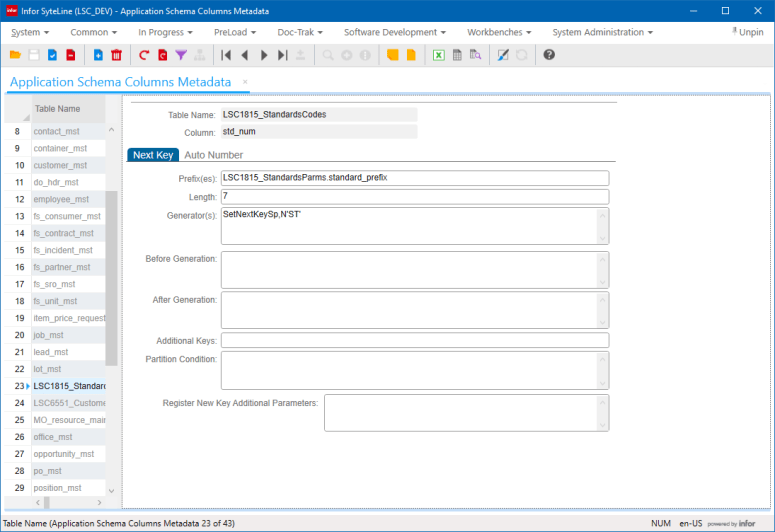
Now, open “Application Schema Tables Metadata”
Find your table, and select the “Register New Key” checkbox, and save the record.
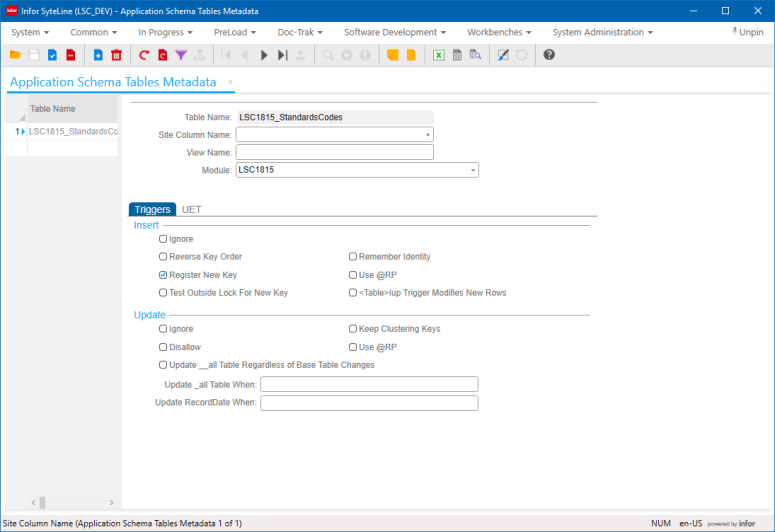
Open “Trigger Management,” specify your custom table, and click “Process.”

Finally, go to your form for your new table, find the component now linked to the NextKeys table, and set the component “To Be Determined” property to “True.” The field will go green. Create a new record, but leave your TBD field blank. When you save, your trigger will auto-generate something that looks like this: “ST00001″(for a prefix of “ST” and a length of 7). Every additional record will increment the number by 1, and you can look in the NextKeys table to see that it’s generating properly.
 SyteLinePSA
One thought on “Enabling NextKeys (TBD) on a Custom Form”